
Introduction
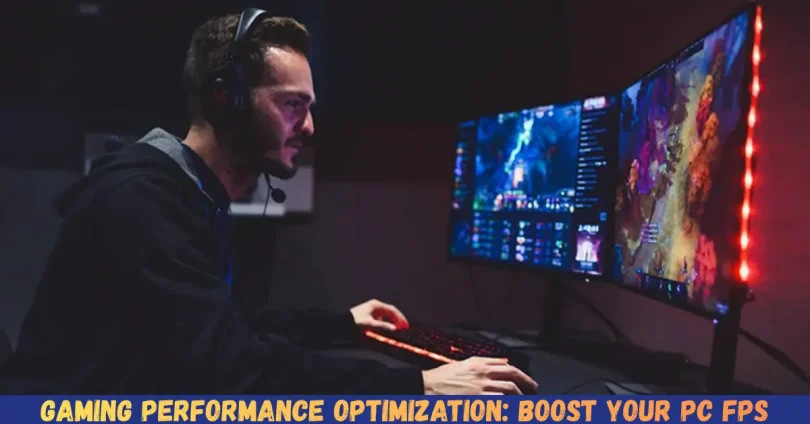
Gaming has become one of the most popular forms of entertainment worldwide. Whether you enjoy fast-paced shooters, immersive role-playing games, or competitive multiplayer titles, a smooth gaming experience is essential. Nothing ruins a thrilling gaming session more than lag, stuttering, or long loading times. This is where Gaming Performance Optimization comes into play. By tweaking your system, updating settings, and understanding your hardware, you can significantly improve frame rates, reduce delays, and enjoy a more immersive experience.
For beginners, the idea of optimizing a gaming setup may seem overwhelming. Terms like frame rate, resolution, and GPU settings can feel technical and confusing. However, with simple, clear guidance, anyone can enhance their gaming experience without needing advanced technical skills. Even intermediate gamers who have some experience with settings adjustments can benefit from a structured approach to performance optimization.
What is Gaming Performance Optimization?
Gaming performance optimization refers to the process of improving your computer or console to achieve better gaming performance. This involves adjusting hardware settings, software configurations, and in-game options to maximize frame rates, reduce lag, and prevent crashes. Essentially, it’s about making your system run games as smoothly as possible.
Optimization can include:
- Updating graphics drivers and software
- Tweaking game settings for higher frame rates
- Managing system resources to avoid background slowdowns
- Improving cooling and airflow to prevent overheating
- Using performance-enhancing tools like game boosters or optimization software
Think of gaming performance optimization as tuning a car engine. Even a high-end gaming PC needs adjustments to reach its full potential. Without optimization, you might experience lower frame rates, screen tearing, or long load times, which can ruin the gaming experience.
It’s important to note that optimization doesn’t always mean upgrading your hardware. While better hardware helps, smart adjustments and configurations can drastically improve performance even on older systems.
Why is Gaming Performance Optimization Important?
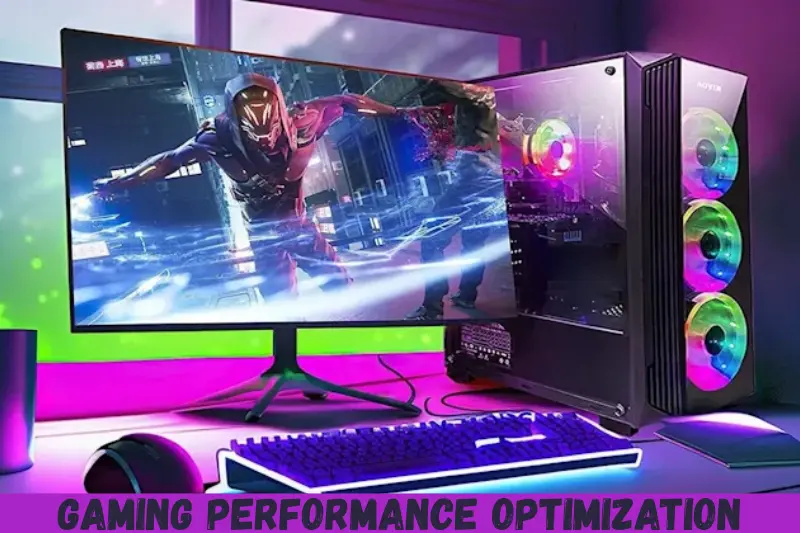
Smooth gaming isn’t just about aesthetics—it impacts performance, responsiveness, and enjoyment. Here are the key reasons why gaming performance optimization is important:
- Improved Frame Rates – Higher frame rates make games appear smoother and more responsive. This is crucial for competitive gaming where milliseconds matter.
- Reduced Lag and Stuttering – Lag can ruin the flow of a game, especially in multiplayer scenarios. Optimization helps reduce delays caused by software or hardware inefficiencies.
- Enhanced Visual Quality – Proper optimization ensures your system can handle high-quality textures and graphics without sacrificing performance.
- System Stability – Optimized settings prevent crashes, overheating, and hardware strain, extending the life of your PC or console.
- Better Gaming Experience – When your system runs efficiently, you enjoy a seamless, immersive experience without distractions from technical issues.
- Resource Management – Optimization helps your system allocate memory and CPU power effectively, making background processes less likely to affect your gameplay.
In short, gaming performance optimization isn’t just a luxury—it’s a necessity for anyone serious about gaming. It allows you to enjoy games as intended and ensures your system can handle demanding titles without unnecessary frustration.
Detailed Step-by-Step Guide
Step 1: Check Your Hardware
Before adjusting software or settings, understand your hardware’s capabilities:
- CPU (Processor) – Handles game calculations. Ensure it meets or exceeds the game’s requirements.
- GPU (Graphics Card) – Drives visual performance. A more powerful GPU improves frame rates and resolution.
- RAM (Memory) – Adequate RAM allows games to load faster and reduces stuttering.
- Storage – SSDs provide faster loading times than traditional HDDs.
Use system information tools to check your specifications. Compare them with the recommended game requirements to identify potential bottlenecks.
Step 2: Update Drivers and Software
Outdated drivers can severely impact performance. Focus on:
- Graphics Drivers – Update from NVIDIA, AMD, or Intel to ensure compatibility and performance improvements.
- DirectX and Game Libraries – Install the latest DirectX, Visual C++ Redistributables, and .NET Framework versions.
- Game Patches – Developers often release patches to optimize performance and fix bugs.
Keeping software up-to-date ensures your system can run games efficiently and reduces crashes or glitches.
Step 3: Optimize In-Game Settings
Every game has its own settings that affect performance. Adjust the following:
- Resolution – Lowering resolution increases frame rates but reduces visual sharpness. Find a balance that suits your monitor.
- Graphics Quality – Adjust texture, shadow, and effect settings. High settings look great but may reduce FPS.
- V-Sync and Frame Cap – V-Sync prevents screen tearing but can introduce input lag. Frame caps help maintain stable FPS.
- Anti-Aliasing – Smooths edges but is resource-intensive. Lower settings can improve performance.
Tip: Start with medium settings, test performance, then fine-tune for optimal balance between visuals and smooth gameplay.
Step 4: Manage Background Processes
Many background applications consume CPU, GPU, and memory, slowing down games. Steps to optimize:
- Close unnecessary apps before gaming
- Disable auto-start programs
- Use Task Manager to monitor resource usage
- Consider a lightweight operating system or game mode
Windows Game Mode can prioritize system resources for gaming, improving performance without hardware upgrades.
Step 5: Optimize Storage and Disk Usage
Slow storage can cause long load times and stuttering. Steps include:
- Use an SSD for faster read/write speeds
- Defragment HDDs regularly (skip SSDs)
- Clear temporary files and caches
- Keep at least 20% free disk space for system stability
Proper storage optimization reduces lag caused by data bottlenecks.
Step 6: Adjust Power and Performance Settings
Gaming PCs often throttle performance to save energy. Adjust settings:
- Set your PC to High Performance mode in Power Options
- Ensure your GPU runs at maximum performance using software control panels
- Avoid unnecessary throttling from laptops by plugging into power adapters
This ensures consistent performance, especially during graphically intense games.
Step 7: Improve Cooling and Airflow
Overheating reduces performance and can damage components. Steps to optimize cooling:
- Clean dust from fans and vents
- Use a cooling pad for laptops
- Ensure proper airflow inside PC cases
- Consider upgrading CPU/GPU coolers for high-performance builds
Keeping your system cool prevents thermal throttling and maintains stable frame rates.
Step 8: Use Optimization Software
Tools can automate performance tweaks:
- Game boosters temporarily disable background apps
- GPU management software optimizes graphics settings automatically
- Monitoring tools track temperature, usage, and FPS
Be cautious—rely on reputable tools to avoid malware or system instability.
Benefits of Gaming Performance Optimization
- Smoother Gameplay – Higher FPS and fewer stutters
- Enhanced Graphics – Better textures, shadows, and effects
- Lower Latency – Quicker response in multiplayer games
- Reduced Crashes – More stable gaming sessions
- Longer Hardware Lifespan – Prevents overheating and wear
- Efficient Resource Use – Frees up CPU and RAM for gaming
- Faster Load Times – Especially on SSDs with optimized storage
Disadvantages / Risks
- Overclocking Damage – Pushing hardware beyond limits can overheat or shorten lifespan
- System Instability – Aggressive optimization may cause crashes if not done carefully
- Software Conflicts – Some optimization tools can interfere with games
- Reduced Visual Quality – Lower settings improve FPS but affect appearance
- Time Investment – Fine-tuning settings can be time-consuming
Common Mistakes to Avoid
- Ignoring System Requirements – Running games on underpowered hardware leads to poor performance.
- Neglecting Updates – Outdated drivers and software reduce FPS and stability.
- Overdoing Graphics Settings – Ultra settings can reduce FPS dramatically without significant visual benefit.
- Skipping Cooling – Overheating causes throttling and potential hardware damage.
- Installing Unverified Software – Unknown optimization tools may harm your system.
- Forgetting Background Processes – Apps running in the background can eat resources and reduce gaming performance.
FAQs
1. How can I check my FPS in games?
Most games have built-in FPS counters. You can also use software like MSI Afterburner or NVIDIA GeForce Experience to monitor FPS, temperature, and usage in real-time.
2. Does gaming optimization require hardware upgrades?
Not always. Many optimization steps involve adjusting settings, closing background apps, or updating software. Upgrades improve performance but aren’t necessary for moderate improvements.
3. Is overclocking safe for beginners?
Overclocking can boost performance but increases heat and stress on components. Beginners should avoid overclocking or follow detailed guides carefully.
4. Will optimization reduce game crashes?
Yes. Updating drivers, optimizing settings, and improving cooling can significantly reduce crashes and freezes.
5. Can I optimize gaming on laptops?
Absolutely. Laptops benefit from power mode adjustments, cooling pads, SSDs, and software optimizations. However, hardware upgrades are more limited than desktops.
6. How often should I optimize my system?
Regular maintenance is recommended every few months, or whenever you notice lag, stuttering, or performance drops. Keeping drivers and software updated is part of ongoing optimization.
7. Does lowering graphics settings improve performance?
Yes. Lowering resolution, textures, shadows, and effects can dramatically increase FPS and reduce lag, especially on older systems.
8. Are optimization tools necessary?
Not mandatory, but they help automate tweaks and monitor performance. Choose reputable tools from trusted sources.
Expert Tips & Bonus Points
- Enable DirectX 12 or Vulkan in supported games for better performance.
- Use SSD storage for frequently played games to reduce load times.
- Keep your PC clean and dust-free to maintain cooling efficiency.
- Avoid running games in windowed mode for maximum FPS.
- Adjust texture and shadow settings first—they often have the biggest FPS impact.
- For competitive games, prioritize low latency over graphics quality.
- Monitor temperatures during long sessions to prevent throttling.
Bonus: Consider game-specific optimization profiles in GPU software for automatic tweaks.
Conclusion
Gaming performance optimization is a key factor in achieving smooth, enjoyable gameplay. By understanding your hardware, updating drivers, managing settings, and keeping your system clean and cool, you can unlock your PC’s full potential. Beginners can follow simple steps to see immediate improvements, while intermediate gamers can fine-tune settings for a perfect balance between visuals and performance.
Optimized systems reduce lag, prevent crashes, and improve frame rates, providing a more immersive and competitive gaming experience. Even without expensive upgrades, careful adjustments and regular maintenance can significantly enhance gameplay.